


Getting Started with TrustFinance
After claiming your profile, learn how to efficiently set up and customize your business profile on TrustFinance by following our comprehensive guide. Our user-friendly dashboard will assist you every step of the way to ensure your profile stands out and accurately represents your business. You'll gain numerous benefits, including increased visibility and detailed insights into your company’s performance.
Steps to Customize Your Business Profile

STEP 1: Logging into the Dashboard
Visit the TrustFinance Business Page: After claiming your business, you will receive a password for logging in. Navigate to TrustFinance For Business and log in.
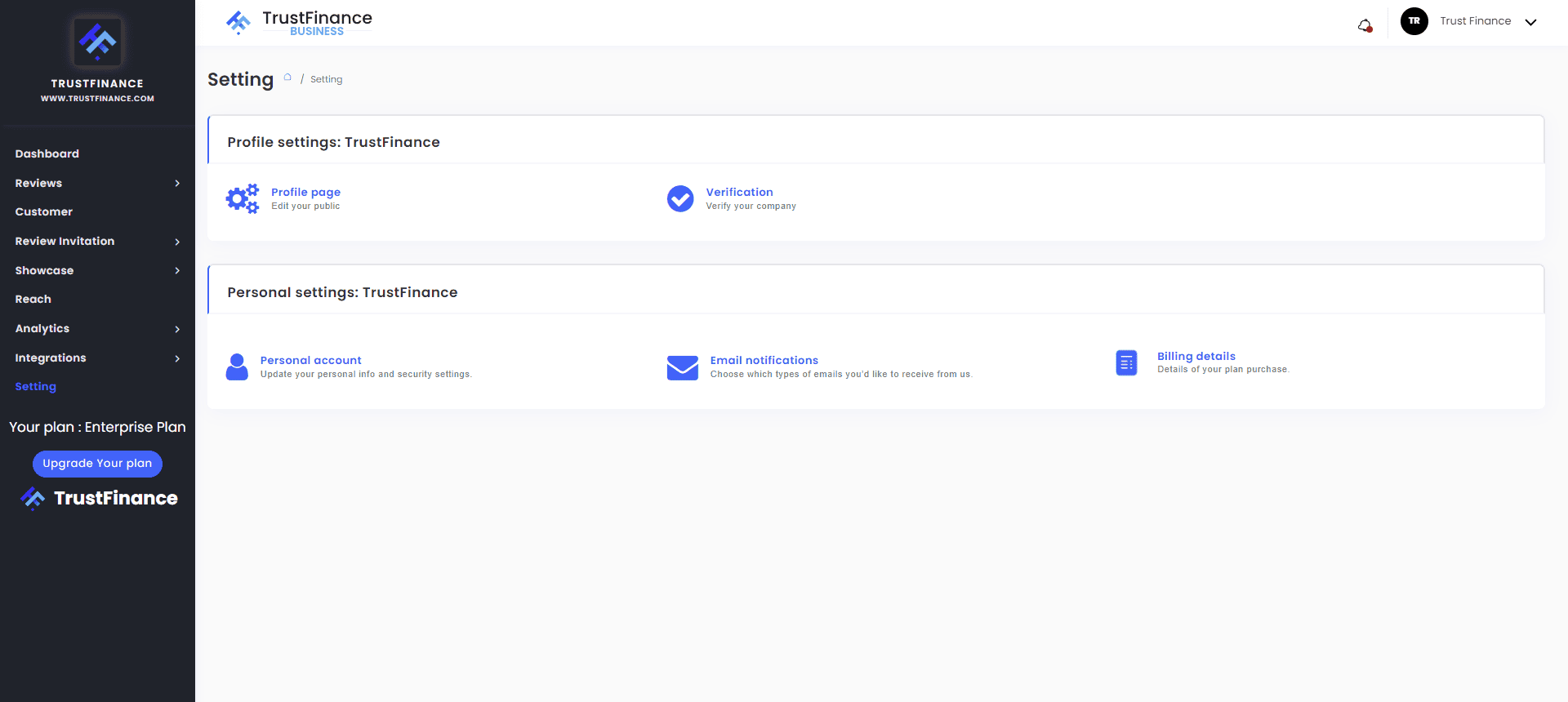
STEP 2: Verify Your Business Information
Navigate to Settings: Scroll to the bottom of the sidebar and click on the "Settings" option.
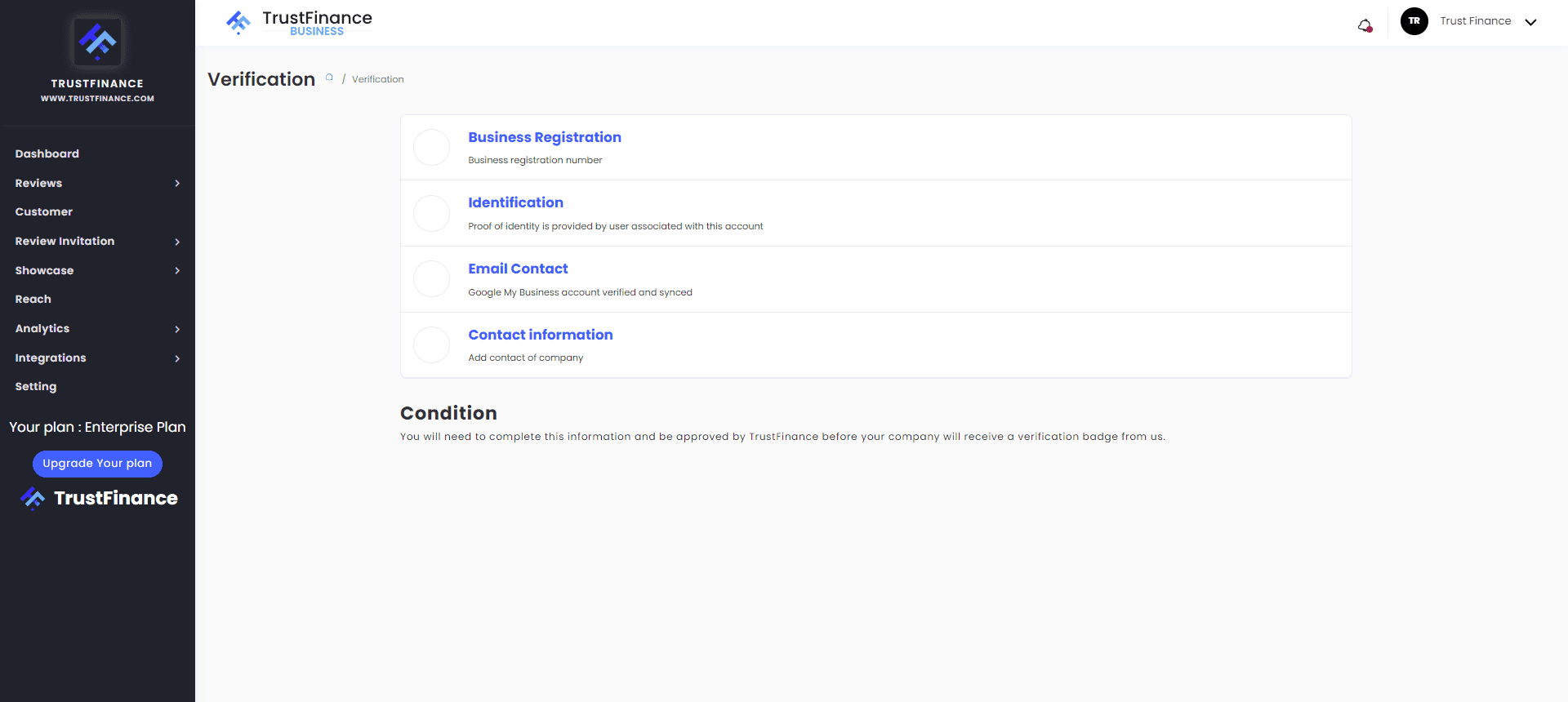
Verify Your Business
- Business Registration:
- Enter your Business Registration Number (BRN) and Employer Identification Number (EIN).
- Identification:
- Enter the administrator's first and last name.
- Upload identification documents (passport, ID card, driver's license, or residence permit in .jpg, .jpeg, .png, or .pdf format).
- Google Business Account Synchronization:
- Sync your Google business account for verification.
- Contact Information:
- Provide your business email address, company address, and at least one company phone number.
After you have completed the verification steps, go back to the Settings page, navigate to the Profile page menu, and follow these steps.
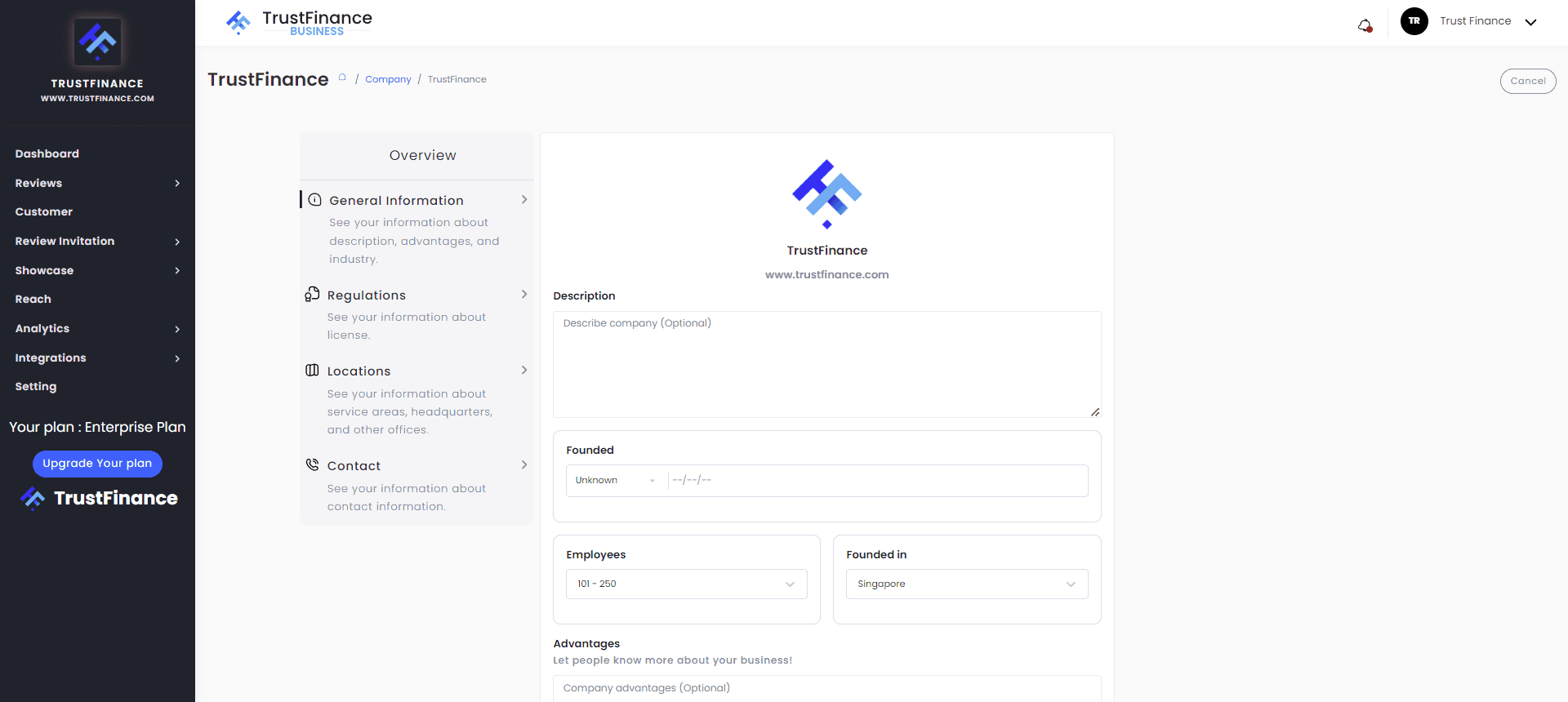
STEP 3: Customize Your Profile Information
General Information
- Company Details:
- Fill in the description of your company, including the services provided.
- Enter the year your company was founded, the number of employees, and the country of establishment.
- Service Categories:
- Check the appropriate boxes for the services you offer.
- Select the main category of services provided.
Providing detailed information helps customers find you more easily and builds trust.

Enter Your Regulation Information
- Regulatory Agency:
- Select the agency that authorized your business operations.
- License Details:
- Enter the license number, start date, and expiration date (DD/MM/YYYY).
- Attach license documents for verification.
Your license will be reviewed and approved by our team.

Select Service Areas
- Specify the areas where you provide services.
- Enter the address of your headquarters.
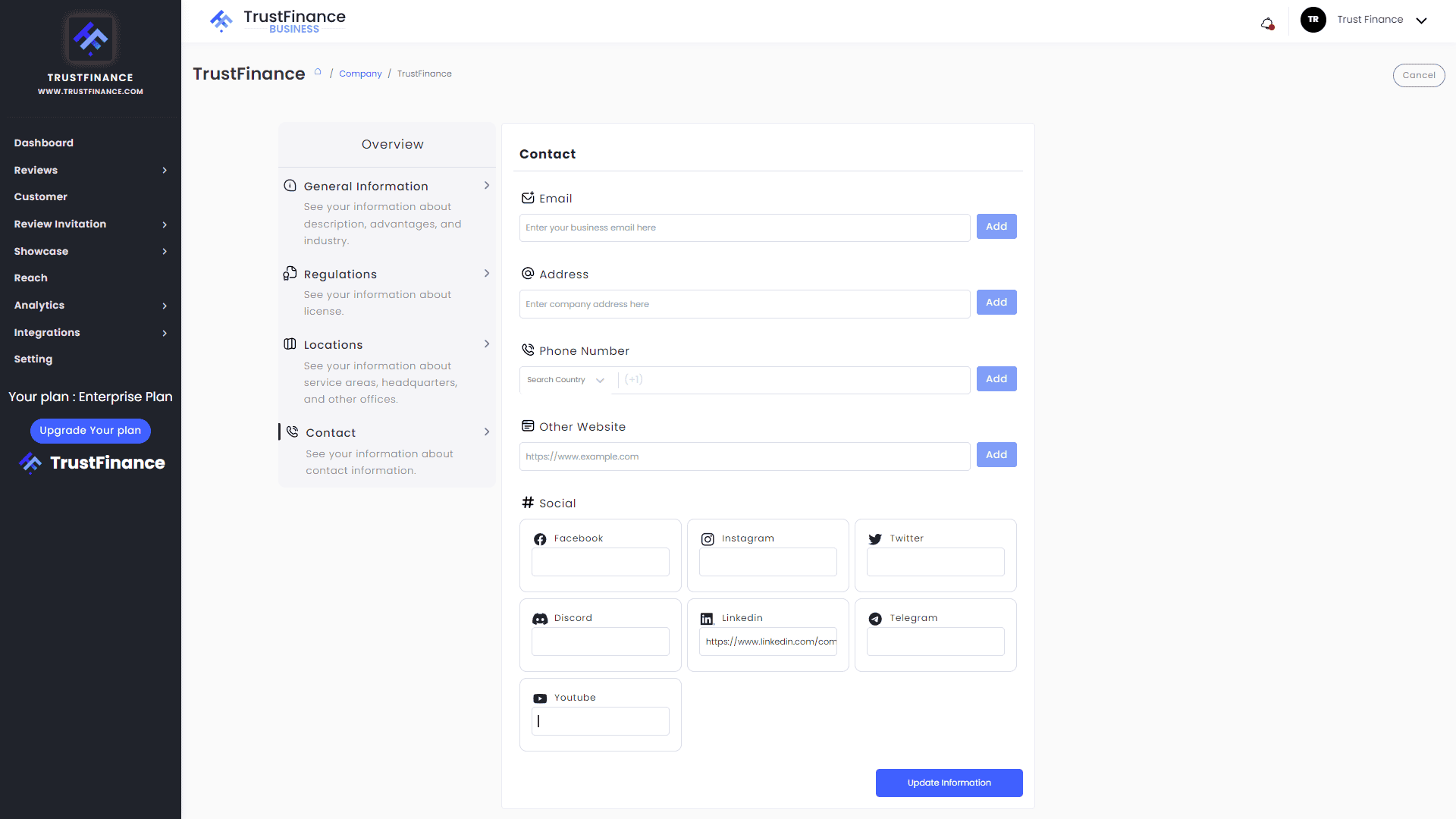
Contact Information and Social Media
- Provide your contact details and social media channels to inform customers how they can reach or follow your company.
Conclusion
By following these steps, you can effectively customize your business profile on TrustFinance, enhancing your visibility and building customer trust. Start now and make the most of our platform’s features to grow your business.